Actions
Actions allow you to apply image filters to each image/layer.
Press the Add Action... button and select one of the available actions, or add a custom action.
Each action can be:
- activated/deactivated,
- edited,
- renamed (via the
Renamemenu or by pressing F2), - moved up/down (via the
Move Up/Downmenu, by dragging, or by pressing Alt + Up/Down), - duplicated (via the
Duplicatemenu or by pressing Ctrl + D). - removed (via the
Removemenu or by pressing Delete).
You can add the same action multiple times.
Built-in Actions
File and Naming
Rename
Renames images/layers according to the specified pattern.
This action uses the same text entry as the one in Batch Convert or Export Layers next to Filename, described in Renaming.
Additionally, this action allows customizing whether to rename both images/layers and folders (by checking Rename folders/Rename group layers) or rename folders only (by checking Rename folders/Rename group layers and unchecking Rename images/Rename layers).
For Batch Convert and Export Layers, this action performs renaming on top of the entry next to Filename.
For Edit and Save Images, renaming will have no effect unless the images are saved via the Save action.
Remove file extension from imported images
Only available for: Edit and Save Images
Removes the file extension from images opened in GIMP that were imported from a non-native file format (i.e. not XCF). Native XCF files and new images are kept intact.
Remove Folder Structure
Only available for: Batch Convert, Export Layers, Edit Layers
Exports all images to the output folder on the same level, i.e. subfolders are not created.
Options:
- (Edit Layers only) Consider visibility of parent folders: If checked, a layer will become invisible if any of its parents are not visible (even if the layer itself is visible). Having this checked corresponds to how the layers are displayed in the image canvas.
Export/Also Export As…
Exports an image/layer to the specified file format.
For Batch Convert and Export Layers, this performs export to another file format.
You can add this action multiple times to export to multiple file formats at once.
Options:
- Output folder: Folder to export the output image(s) to.
- File extension: File extension of the output image(s).
- All options specified in Export Options.
The name of the Export action is automatically updated as you modify the file extension.
For Batch Convert and Export Layers, when this action is added, the values of the options are copied from the default export options. For example, the output folder will be identical to the one currently selected in the main dialog. This simplifies setting up export to multiple file formats without the hassle of manually adjusting the export options in all added actions.
When exporting each image separately (the default, which can be changed via the Perform export option), it usually makes sense to apply the Export action as the last one since actions after Export would have no effect on the current image/layer being processed.
Save
Only available for: Edit and Save Images
Saves the images in the native GIMP (XCF) file format.
If the image already exists, it is overwritten.
Images that were imported or created within GIMP are renamed in the GIMP title bar to contain the .xcf file extension. The images are marked as having no unsaved changes.
To export the image in another file format, use the “Export Images” menu.
Options:
- Output folder: Folder to save images to. By default, existing XCF images are saved to their original locations (the
Use original location (override)option). You may instead specify a folder where all images will be saved, including new and non-XCF images. - Output folder for new and imported images: Folder where new images or non-XCF images are saved as XCF images.
Resize and Transform
Scale
Scales (resizes) the entire image or a layer.
Options:
- Apply to (image or layer): Whether to scale the current image, current layer, or other objects (e.g. background/foreground).
- How to scale: Determines how scaling is performed.
- Stretch: The aspect ratio is ignored, i.e. the image/layer is stretched.
- Match width (keep aspect ratio): The aspect ratio is preserved. You may adjust the width, while the height is calculated automatically.
- Match width (keep aspect ratio): The aspect ratio is preserved. You may adjust the height, while the width is calculated automatically.
- Fit within bounds: The aspect ratio is preserved. The image/layer will be scaled such that it fits Width or Height, whichever is smaller.
- Fit to canvas: The aspect ratio is preserved. The image/layer will be scaled such that it fits Width and Height, and any remaining empty space is filled with the specified color. You can customize where the empty space is positioned relative to the image/layer (from the start, center, end or from a custom starting position).
- Width: The new width, specified using an absolute unit (pixels, inches, …) or a percentage (of width of the current image, layer, …).
- Height: The new height, specified using an absolute unit (pixels, inches, …) or a percentage (of width of the current image, layer, …).
- Interpolation: Type of interpolation to use.
- Use local origin: If checked and the object to scale is a layer, it will be scaled around its center. If not checked, the layer will be placed in the upper left corner of the image.
- Set image resolution in DPI: Whether to set a new resolution for the current image. If checked, you can set the X- and Y-components of the new resolution in DPI.
- When to scale: Allows scaling only images/layers smaller/larger than the specified width and height, or custom width and height (independent of Width and Height).
Resize Canvas
Resizes the image or layer extents, i.e. adds empty space from the edges. There are multiple ways you can perform resizing based on your needs. You may optionally fill the added space with a color.
Note that this action does not upscale/downscale the image/layer. For that purpose, use the Scale action.
Options:
- How to resize:
- Resize from edges (add borders): Adds the specified amount at each edge. The amount can be specified in a variety of units (pixels, percentages, inches, …). You can also remove content by specifying negative values.
- Resize from position: Resizes to the specified width and height from the specified position, e.g. starting from the upper left corner, from the center, etc.
- Resize to aspect ratio: Resizes to the specified aspect ratio (width:height), e.g. to 4:3 or 16:9 or any ratio of your choice. You can customize where the resizing starts (from the start, center, end or from a custom starting position).
- Resize to area: Resizes to the area specified by offsets, width and height.
- Resize to layer size: Resizes the image/layer to fit the specified layer(s).
- Resize to image size: Resizes the image/layer to fit the specified image.
- Fill added space with color: If checked the newly added space will be filled with the color specified by Color for added space.
- Color for added space: The color to fill the newly added space with. If the image is resized, the currently processed layer is resized as well and is filled with this color.
For Export Layers, the Resize to layer size option is enabled by default. This means that the exported image will have the same dimensions as the layer to export. To keep the image canvas intact (thus keeping the layer position within the image), uncheck this action. Note that in that case the layers will be cut off if they are partially outside the image canvas.
Crop
Crops the specified image or layer. There are multiple ways you can perform cropping based on your needs.
Options:
- How to crop:
- Crop from edges: Removes the specified amount from each edge. The amount can be specified in a variety of units (pixels, percentages, inches, …).
- Crop from position: Crops to the specified width and height from the specified position, e.g. starting from the upper left corner, from the center, etc.
- Crop to aspect ratio: Crops to the specified aspect ratio (width:height), e.g. to 4:3 or 16:9 or any ratio of your choice. You can customize where the cropping starts (from the start, center, end or from a custom starting position).
- Crop to area: Crops to the area bounded by the starting position (X, Y), width and height.
- Remove empty borders: Automatically removes empty areas along the edges of the image/layer.
Align and Offset
Aligns layer(s) with the current image or another layer. You may specify additional offsets after the alignment is applied.
Options:
- Layers to align: Layers to align. This can be a single layer (e.g. the current layer, background, foreground) or all layers inserted in the currently processed image.
- Object to align layers with: Whether to align with the entire image or another layer.
- Horizontal alignment: Left, center or right alignment, or Keep the horizontal position intact.
- Vertical alignment: Top, center or bottom alignment, or Keep the vertical position intact.
- Additional X-offset: Moves the layers horizontally by the specified amount, using an absolute unit (pixels, inches, …) or a percentage (of width of the current image, layer, …).
- Additional Y-offset: Moves the layers vertically by the specified amount, using an absolute unit (pixels, inches, …) or a percentage (of width of the current image, layer, …).
Flip Horizontally
Flips the current image or layer horizontally around its center.
Flip Vertically
Flips the current image or layer vertically around its center.
Rotate
Rotates the current image or layer.
Options:
- Apply to (image or layer): Whether to rotate the current image, current layer, or other objects (e.g. background/foreground).
- Angle: Rotate by 90, 180 or 270 degrees, or use a Custom angle.
- Custom angle: Rotation angle in degrees or radians. Applies only if Angle is set to Custom. If the custom angle is used on the image rather than a layer, all layers within the image are rotated around the image’s center.
- Resize image to fit: If checked, the image is resized to fit the new bounds. This only applies to rotating the entire image with a custom angle.
- How to handle boundaries: How to handle the extents of layers after rotation - resize the layer, clip or crop. If rotation is applied to an image, all layers are handled the same way. Note that resized layers will not cause the image to grow; to achieve that, add the
Resize Canvasaction and useResize to layer size. - Interpolation: Interpolation for rotated layers. Has effect only if Angle is set to Custom.
- Rotate around the center: If checked, the layer is rotated around their center.
- Horizontal position of center: The X-coordinate of the point around which the layer is rotated. Applies only if Rotate around the center is unchecked.
- Vertical position of center: The Y-coordinate of the point around which the layer is rotated. Applies only if Rotate around the center is unchecked.
Layers and Composition
Insert Overlay (Watermark)
Inserts an image or text as a layer behind or in front of the current layer.
You can then apply basic adjustments such as size, position or opacity.
More adjustment options can be found under More options.
For Export Layers and Edit Layers, you can also specify a color tag.
This will insert layers from the current having the color tag as a single merged layer.
The tagged layers are excluded from processing by default.
If this is not desired, deactivate the Without Color Tag: <color tag> condition that was added automatically.
To further adjust the inserted layer, you can add actions after this action and set the layer to Layer Below (Background) or Layer Above (Foreground) instead of Current Layer (if available).
Duplicate Layer
Inserts a copy of the specified layer.
The inserted layer can be placed behind (below) or in front of (above) of the current layer, or at the top or the bottom of the layer stack within the current image.
Layer groups are copied in their entirety. Layer effects (filters) and attributes (visibility, locks) are preserved.
Merge Layer
Merges a layer directly above or below the current layer with the current layer.
This is useful e.g. if you need to apply further actions on a single layer.
For Edit Layers, this action ensures that you have a single merged layer rather than having the background as a separate layer.
Options:
- Merge type: Indicates how to perform the merge. The available merge types are the same as for Merge Visible Layers, under the section
Final, Merged Layer should be:.
Apply Group Layer Appearance
Only available for: Export Layers, Edit Layers
Applies attributes (filters, opacity, mode, …) from all parent group layers to the current layer to match its appearance in GIMP.
You can switch off individual attributes to customize the appearance.
If Merge groups with layer is enabled, the groups are merged into the layer. Otherwise, the current layer is turned into a group layer. Subsequent actions may in that case fail if they attempt to perform operations not allowed on group layers, e.g. applying layer effects destructively.
Merge Filters
Merges all visible filters (layer effects) in the specified layer.
Merge Visible Layers
Only available for: Batch Convert, Export Images, Edit and Save Images
Merges all visible layers within the image into a single layer. Invisible layers are removed.
This is useful if the image contains multiple layers and you want to apply filters (layer effects) or other actions on the entire image.
Flatten
Flattens the specified layer or the entire image.
By default, the background color specified in GIMP is used to fill the alpha channel. You can override this by setting a custom background color applied only within this action.
Colors
Brightness-Contrast
Adjusts brightness and contrast.
For GIMP 3.2 and later, additional options are provided:
- Filter responsible for adjusting brightness and contrast:
GEGL(uses thegegl:brightness-contrastfilter) andGIMP(uses thegimp:brightness-contrastfilter). - Option to apply this action non-destructively, opacity and blend mode.
Color Balance
Only available for GIMP 3.2 or later
Equivalent to Colors → Color Balance in GIMP.
Hue-Saturation
Only available for GIMP 3.2 or later
Equivalent to Colors → Hue-Saturation in GIMP.
Levels
Applies levels from a saved preset file. Both GIMP and Photoshop (.alv) file formats are supported.
For GIMP 3.2 and later, you may apply levels non-destructively and adjust opacity and blend mode.
You can save a GIMP preset file by choosing Export Current Settings to File in the Levels tool.
Curves
Applies curves from a saved preset file. Both GIMP and Photoshop (.acv) file formats are supported.
For GIMP 3.2 and later, you may apply curves non-destructively and adjust opacity and blend mode.
You can save a GIMP preset file by choosing Export Current Settings to File in the Curves tool.
Equalize
Equivalent to Colors → Auto → Equalize in GIMP.
White Balance
Equivalent to Colors → Auto → White Balance in GIMP.
Stretch Contrast
Equivalent to Colors → Auto → Stretch Contrast in GIMP.
Stretch Contrast HSV
Equivalent to Colors → Auto → Stretch Contrast HSV in GIMP.
Color Enhance
Equivalent to Colors → Auto → Color Enhance in GIMP.
G’MIC Filter
Only available if G’MIC is installed as a GIMP plug-in
Applies a G’MIC filter non-interactively.
To apply a filter, select a filter in G’MIC and press Ctrl+C, or click the copy button. Then paste the text into the Command text field.
Adding Custom Actions
You can add any GIMP plug-in, layer effect (filter, GEGL operation) or GIMP action by pressing Add Action... and then selecting Add Custom Action.... Both built-in and any third-party plug-ins and layer effects are supported.
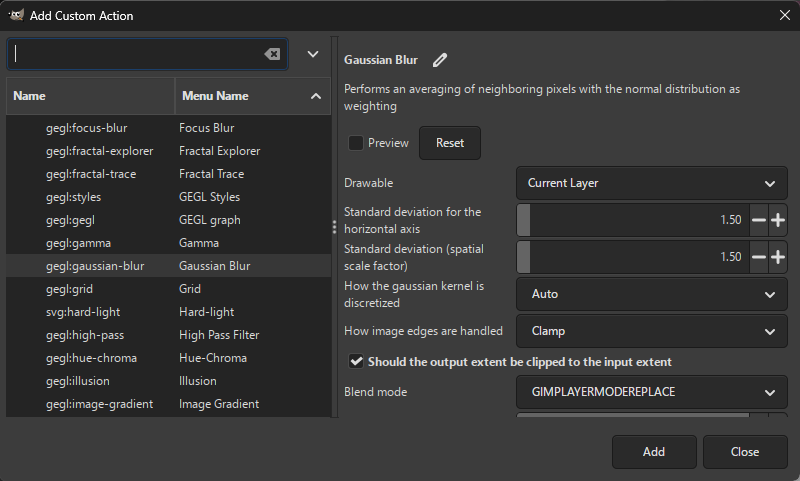
You can preview how the selected action affects the resulting image (by pressing Preview) and adjust action options.
Once you are settled on the action, press Add to permanently add it to the list of actions.
You can edit the action anytime after adding it.
All layer effects (actions under the Filters, Effects category) have the following common parameters:
- Blend mode - blend mode for the effect (default, dodge, burn, hard light, …).
- Opacity - the opacity of the effect.
- Merge filter - the effect will be applied destructively, i.e. will be merged into the layer.
- Visible (displayed under
More options) - if unchecked, the effect will be added, but will not be applied. - Filter name (displayed under
More options) - a custom name for the effect. If empty, a default name is assigned by GIMP.